
 End-to-end outreach workflow




Table of Contents
- SPF tells inbox providers which servers are allowed to send email on your behalf.
- DKIM adds a cryptographic signature to every email you send so providers can verify it’s genuinely from you.
- DMARC tells providers what to do when SPF or DKIM fail.
- Incorrectly set up domains can reduce open rates by over 74%
If you’re doing any type of email outreach, you’ve probably heard these acronyms:
DKIM, DMARC, and SPF.
But few actually know what they mean, let alone have checked to see whether they’re configured correctly.
Since almost half of the world’s email is sent as spam in 2025, SPF, DKIM, and DMARC records are the three standards the industry built to fix this.
And if your email isn’t set up correctly, you are starting at a disadvantage.
Our data show that custom domains with no authentication configured can open at less than a third of the rate of fully authenticated domains, a difference of roughly 74% (based on our study of 1,785 domains and 14.3 million emails)
Not only that, but Google, Yahoo, and Microsoft now require all three for anyone sending over 5,000 emails per day from the same domain.
So in this post, I’ll help you understand what SPF, DKIM, and DMARC actually are, and more importantly, how to check them.
TL: DR – What Exactly Are SPF, DKIM, and DMARC?
DMARC, DKIM, and SPF are email authentication methods that prove to your inbox providers (like Gmail or Outlook) that your emails are legitimate.
- DMARC stands for Domain-based Message Authentication, Reporting, and Conformance.
- DKIM stands for DomainKeys Identified Mail.
- SPF stands for Sender Policy Framework.
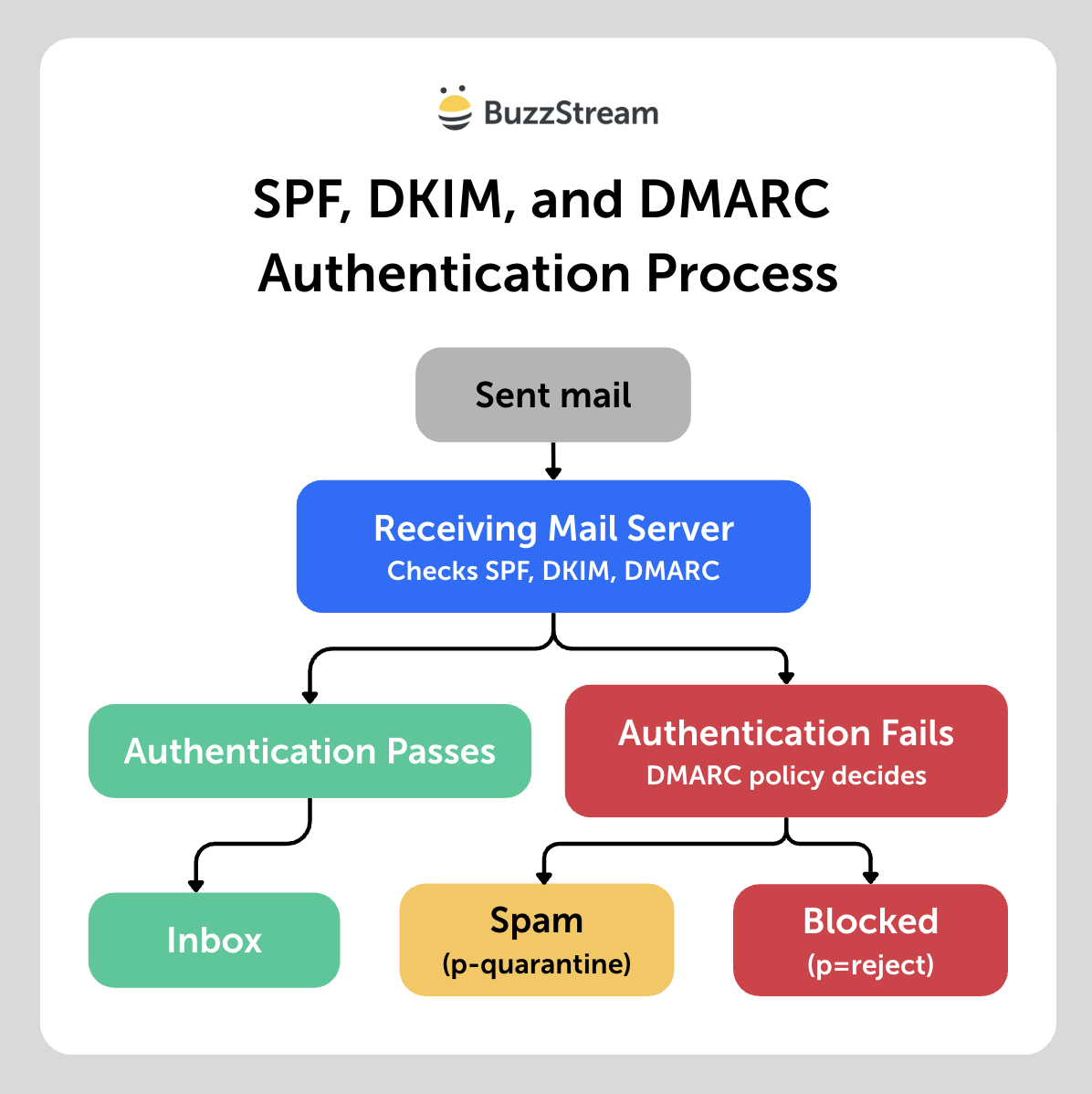
In short, when an email arrives, the receiving mail server checks DNS for SPF, DKIM, and DMARC records.
SPF verifies the sending server, DKIM verifies the message signature, and DMARC checks and tells the receiver whether to monitor, quarantine, or reject failures.
The process looks something like this:
One important caveat: everything in this post assumes you’re sending from a custom domain (like name@buzzstream.com).
If you’re sending outreach from a free provider like Gmail or Outlook personal, you have no control over the DNS settings for that domain.
Quickly Check Your SPF, DKIM, and DMARC
This free tool lets you check your settings and highlight potential gaps:
Email Deliverability Checker
For PR or link builders, getting them wrong means your pitch may never reach the journalist, regardless of how good it is.
Next, let’s dig into what each means.
What Is SPF?
SPF stands for Sender Policy Framework.
SPF is a list of servers that are allowed to send email on your behalf.
The list lives in your Domain Name System (DNS) record.
When an inbox receives your email, it automatically checks that list.
If your sending server is on it, you pass.
If it isn’t, or there’s no list at all, the email gets treated with suspicion.
How SPF works in practice
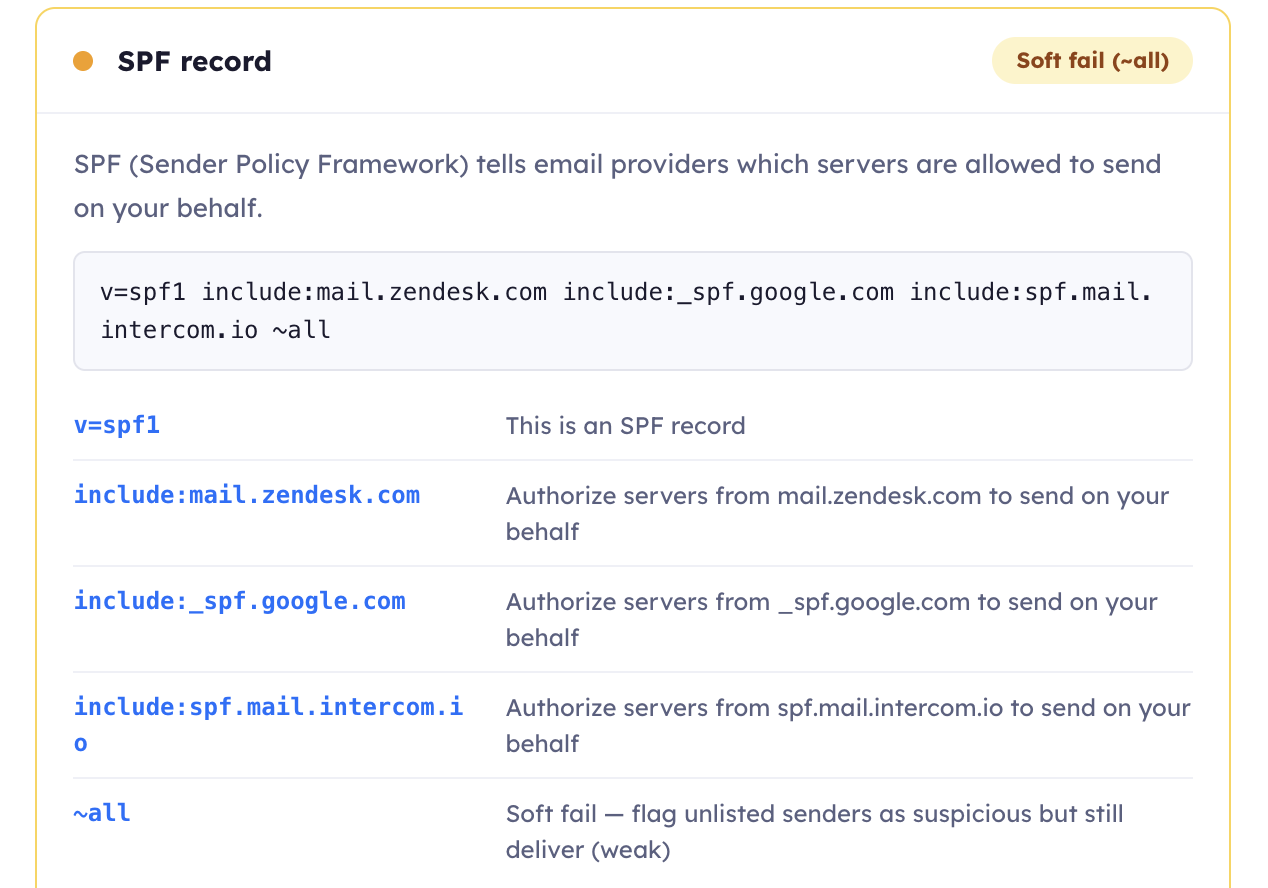
Your SPF record is a DNS record that looks something like this:
v=spf1 include:_spf.google.com include:spf.mail.intercom.io ~all
Breaking that down for a non-technical audience:
v=spf1: this is an SPF recordinclude:_spf.google.com: Google Workspace’s servers are authorized to send on my behalfinclude:spf.mail.intercom.io: Intercom’s servers are also authorized~all: anything not on this list should be treated as a soft fail (suspicious, but still delivered)
The ~all at the end matters a lot. SPF can have a soft fail or a hard fail.
A soft fail (~all) means the email didn’t come from an authorized server, but deliver it anyway and treat it with suspicion.
A hard fail (-all) means the email didn’t come from an authorized server and reject it outright.
Here’s the part that trips people up: a lot of older advice (and some security scanners) will tell you to “upgrade” from ~all to -all for stronger protection.
For an active sending domain, that’s usually a mistake.
Industry group M3AAWG recommends ~all for domains that send email, and reserving -all strictly for parked, non-sending domains.
The reason is that -all can cause some receivers to reject your mail before they ever check DKIM or DMARC.
This breaks legitimate email forwarded through mailing lists or aliases, since forwarding naturally breaks SPF.
With ~all, that forwarded mail still gets a chance to pass on DKIM instead.
The real way to strengthen your setup isn’t switching SPF to hard fail. It’s keeping ~all and layering DMARC on top (moving from p=none to p=quarantine to p=reject).
That gives you the same anti-spoofing protection without the deliverability risk.
How to check your SPF
The fastest way is to use our checker above.
Enter your sending domain, and it’ll show you whether your SPF record exists, what policy it’s set to, and what to do if something’s wrong.
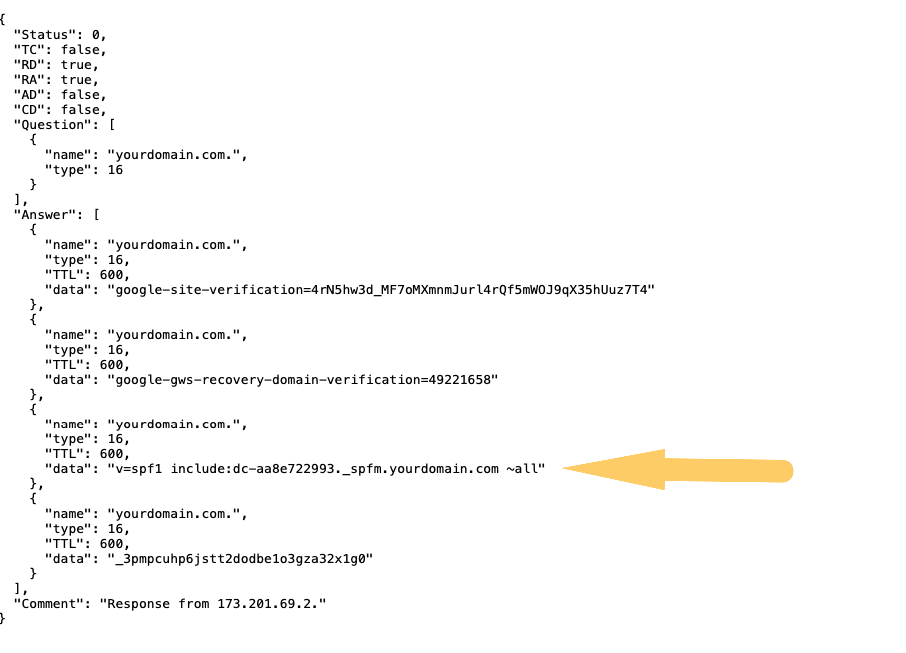
Alternatively, if you want to see the raw record, you can also paste this into your browser:
https://dns.google/resolve?name=yourdomain.com&type=TXT
Look for a record starting with v=spf1.
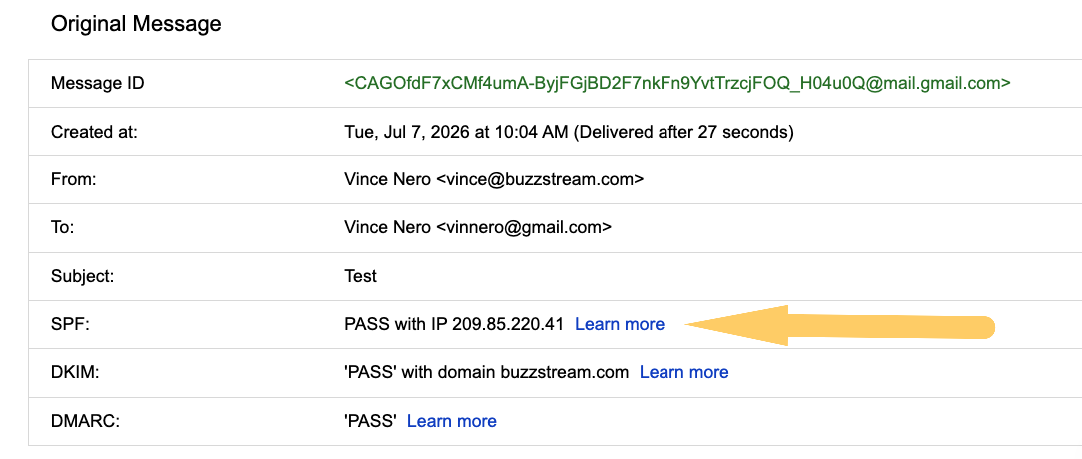
Alternatively, you can check whether SPF is passing by opening any email you’ve sent, selecting “Show original,” and searching for “SPF”.
Here’s what it looks like in Gmail:
How to get started:
- If you’re on Google Workspace, follow Google’s SPF setup guide.
- If you’re on Microsoft 365, follow Microsoft’s SPF docs.
- Keep ~all as your policy — it’s the recommended setting for active sending domains. Strengthen your setup by configuring DMARC (below) rather than switching SPF to hard fail.
What Is DKIM?
DKIM stands for DomainKeys Identified Mail.
DKIM adds a digital signature to email headers using a private key you alone have.
This verifies that the email itself hasn’t been tampered with in transit.
Inbox providers can then check that signature against a public key published in your DNS.
If they match, the email genuinely came from you and hasn’t been altered since it left your server.
How DKIM works in practice
Your DKIM public key is stored as a DNS TXT record at a “selector” subdomain chosen by your email provider.
For Google Workspace, it looks like this:
google._domainkey.yourdomain.com
That selector (“google” in this case) is how inbox providers know where to look.
Different providers use different selectors, which is why checking DKIM requires knowing which provider you’re sending through.
Microsoft 365 uses selector1 and selector2, SendGrid uses s1 and s2, and so on.
How to check your DKIM
Use our deliverability checker above, select your email provider from the dropdown, and it’ll check the right selector automatically.
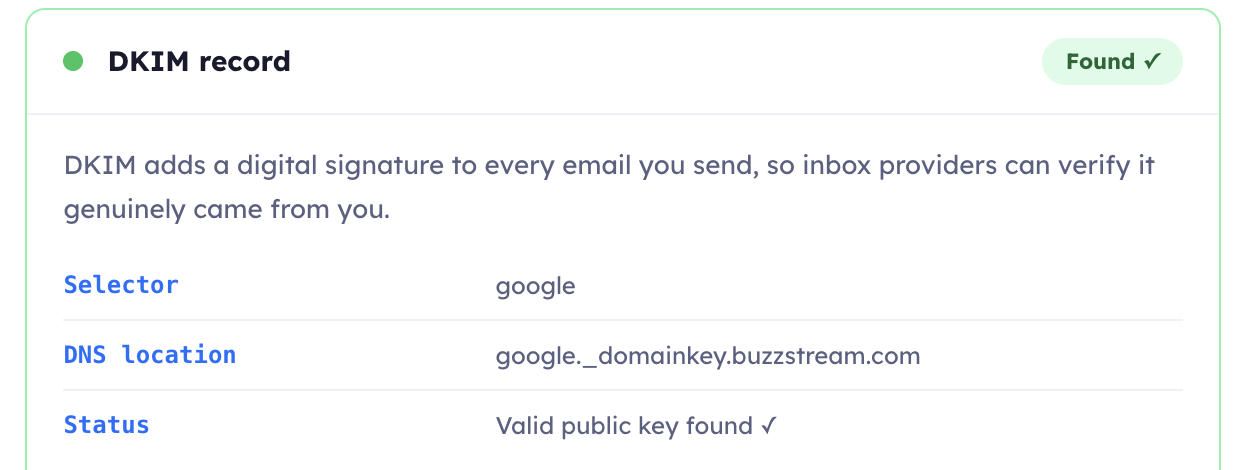
Alternatively, if you want to dig into the headers of a sent email to see whether DKIM is passing, open any email you’ve sent, find “Show original” and search for dkim=pass.
Here’s what it looks like in Gmail:
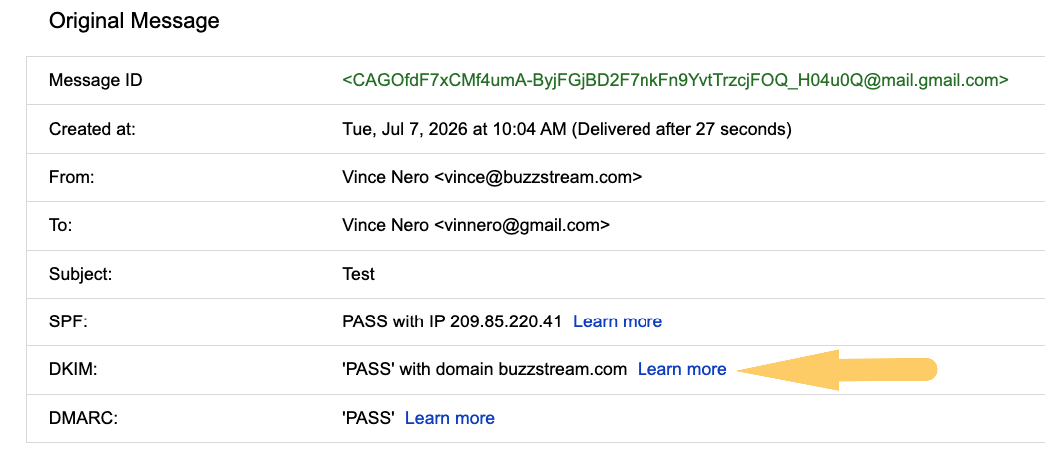
If you see it, you’re signed. If you see dkim=fail, you have a problem worth fixing.
How to get started:
- For Google Workspace, the DKIM setup guide.
- If you’re on Office365, Microsoft Defender portal.
What Is DMARC?
DMARC stands for Domain-based Message Authentication, Reporting, and Conformance.
DMARC is a policy you publish in your domain’s settings telling inbox providers what to do when an email claiming to be from you fails SPF or DKIM.
There are three DMARC policies that can tell the provider whether to deliver, send to spam, or reject your email outright:
- p=none : emails are delivered regardless of whether SPF or DKIM pass.
- p=quarantine : emails that fail authentication are sent to spam rather than the inbox.
- p=reject : emails that fail authentication are rejected outright and never delivered.
DMARC also gives you reporting
This is the underrated part of DMARC.
When you configure a DMARC record with a rua (aggregate reporting) tag, you start receiving reports from inbox providers.
These emails will show you exactly which emails are passing and failing authentication, and whether anyone is trying to spoof your domain.
A basic DMARC record with reporting looks like this:
v=DMARC1; p=quarantine; rua=mailto:dmarc@yourdomain.com
This is saying:
v=DMARC1: it is a DMARC record.
p=quarantine:if an email fails authentication, send it to spam.
rua= mailto:dmarc@yourdomain.com: send me reports about what’s passing and failing to this address.
You can check your DMARC record from a sent email as well:
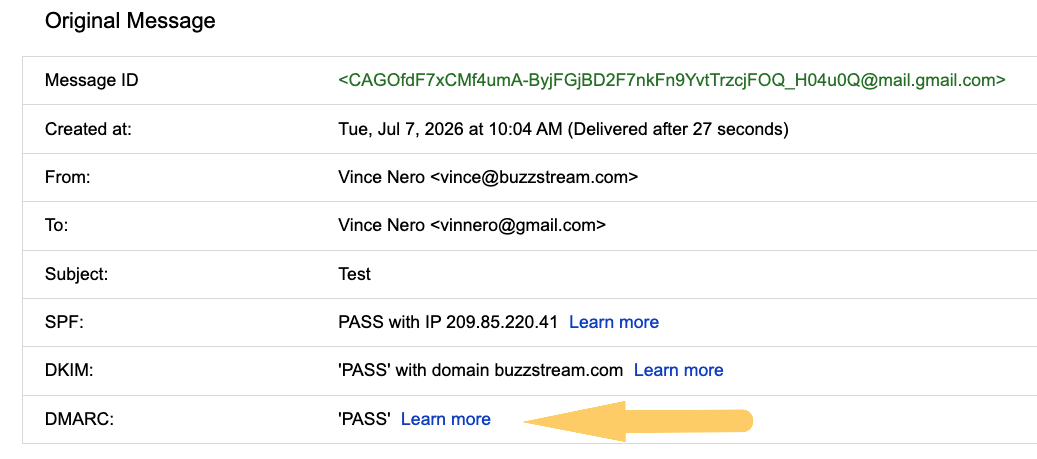
How to get started:
- If you have no DMARC record, use MXToolbox’s free DMARC generator to build your record.
- Start with p=none plus a rua reporting address so you can see what’s happening before you enforce anything.
- Once you’ve confirmed your legitimate mail is passing: move to p=quarantine, then eventually p=reject.
How SPF, DKIM, and DMARC Work Together
If you haven’t gathered by now, each one addresses a different part of the authentication picture.
SPF answers: did this email come from an authorized server?
DKIM answers: has this email been tampered with, and does it genuinely carry the sender’s cryptographic signature?
DMARC answers: what should happen when either of those checks fails?
You need all three.
Here’s a quick way to think about the interaction:
- An email arrives at Gmail from vince@yourdomain.com.
- Gmail checks SPF — is the sending server on the authorized list?
- Gmail checks DKIM — is the cryptographic signature valid?
- Gmail checks DMARC — both passed, so whatever the policy is, deliver it.
- Email lands in the inbox.
If step 2 or 3 fails, DMARC’s policy determines the outcome.
With p=none, it’s delivered anyway. With p=reject, it never arrives.
Where These Records Are Stored (And How to Find Them)
All three records are stored in your domain’s DNS as TXT records.
Your DNS is managed wherever your domain is registered, like GoDaddy, Namecheap, Cloudflare, Google Domains, or your hosting provider.
If you’ve never touched your DNS, your IT team or whoever manages your domain will know how to access it.
The records live in your DNS settings.
- SPF: yourdomain.com
- DMARC: _dmarc.yourdomain.com
- DKIM: [selector]._domainkey.yourdomain.com
Again, the fastest way to see whether yours exist, without touching any DNS settings, is to use our free deliverability checker above.
Enter your domain, select your email provider, and it checks all three and tells you exactly what it found.
Do Properly Configured Email Domains Get Higher Open Rates?
Domains with at least one record configured get 4x higher open rates than domains with none!
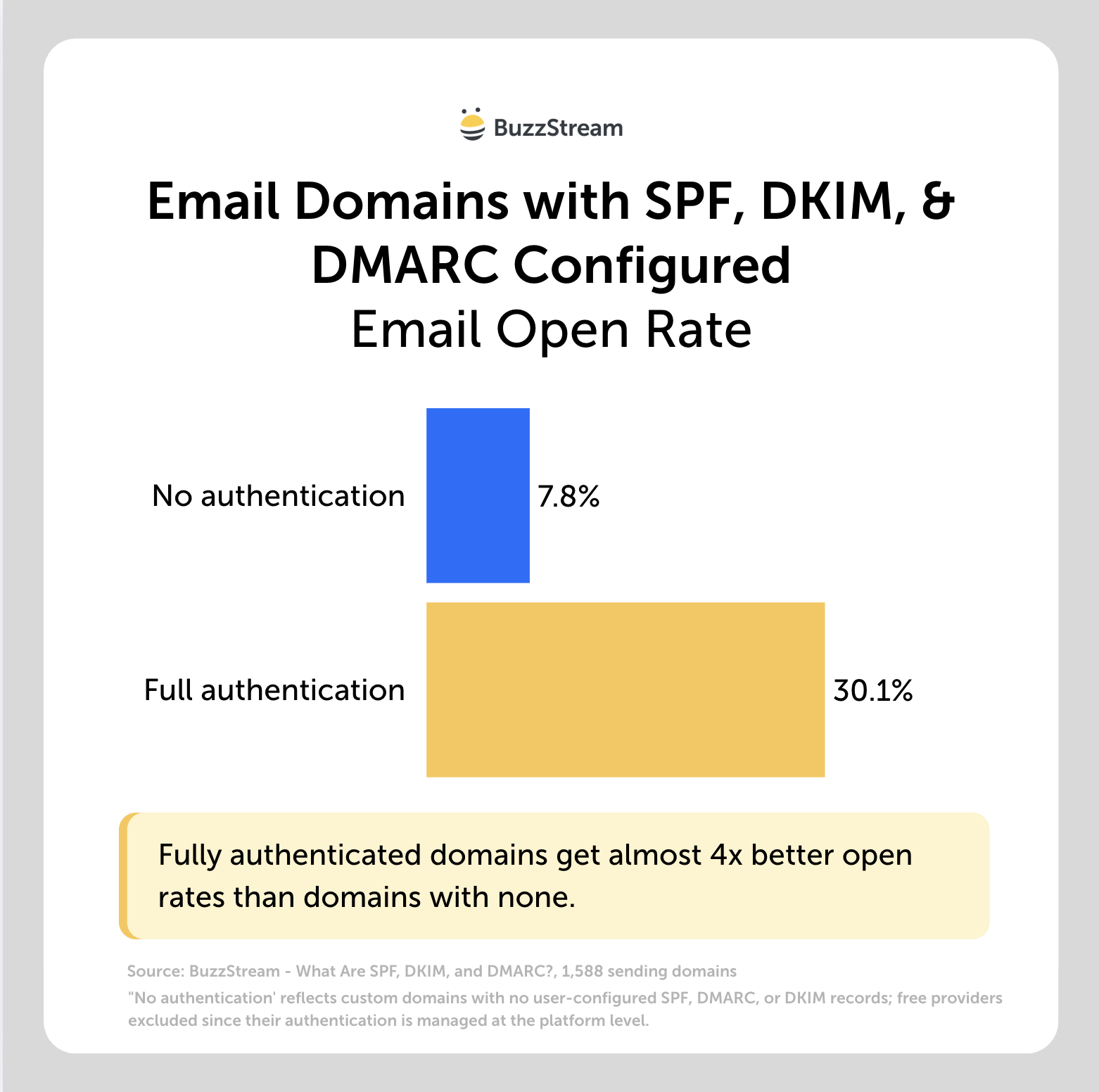
To find this, we analyzed send data across 1,785 BuzzStream domains and 14.3 million emails, checking SPF, DKIM, and DMARC configuration for each sending domain.
Domains with no authentication configured whatsoever (no SPF, no DMARC, no DKIM) — excluding free providers like Gmail, whose authentication is handled at the platform level — opened at 7.8% across 479,354 sends.
Domains with at least one record in place opened at 30.4% across 53 million sends.
That said, it’s important to keep in mind that this is correlational data, not a controlled experiment.
Senders who’ve taken the time to configure authentication are also more likely to be more deliberate about their outreach generally.
We can’t fully isolate authentication as the cause.
But for me, there’s no cut of this data where having nothing configured outperformed having something in place.
The reason to fix SPF, DKIM, and DMARC is that they’re foundational, free to set up, and take at most a few hours to configure.
Why SPF, DMARC, and DKIM Matter More Today
Google, Yahoo, and Microsoft have all moved to require email authentication for bulk senders.
Google and Yahoo started enforcing new sender requirements in early 2024 for anyone sending bulk email (over 5,000 to personal email addresses in a 24-hour period).
Anyone sending more than 5,000 emails per day to personal Gmail or Yahoo addresses from the same domain must now pass SPF and DKIM, publish a DMARC record (at minimum p=none), keep spam complaints below 0.3%, and include a working unsubscribe link.
(For normal senders, SPF and DKIM are required as well.)
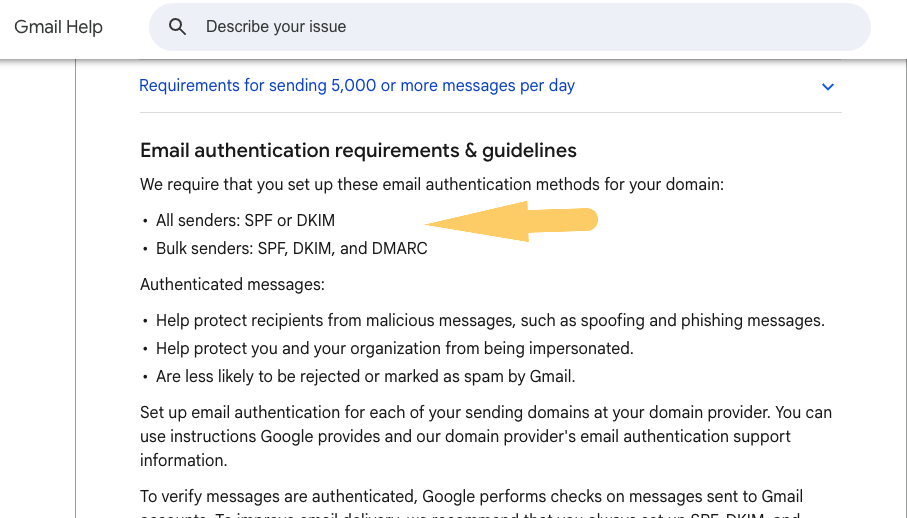
We covered exactly what Yahoo and Google’s email requirements mean in practice.
Microsoft followed in May 2025 with nearly identical requirements for senders emailing addresses at @outlook.com, @hotmail.com, and @live.com.
They have the same 5,000-email threshold and the same SPF/DKIM/DMARC requirements.
Microsoft has already signaled that it intends to move toward stricter DMARC enforcement over time, starting with the current p=none minimum.
Read the full breakdown on the Microsoft email requirements.
And although all three target bulk senders, as spam continues to rise, there’s a good chance these requirements will eventually apply to everyday senders as well.
Other Factors that Influence Deliverability
There are additional factors that influence deliverability beyond SPF, DKIM, and DMARC.
Many of them overlap too.
Poor Sender Reputation: This is something inbox providers track over time. Authentication plays a role, but there are many other factors, such as engagement, spam complaints, and bounce rates.
One underrated signal here is how long your domain has been sending. Our data found that domain age is strongly associated with open rates, with the oldest domains opening at nearly double the rate of the newest ones.
Poor List Hygiene: Sending to invalid, outdated, or unverified email addresses can raise your bounce rates and increase spam complaints, which is why we also recommend avoiding spray-and-pray outreach.
Sending Volume: Suddenly ramping from 100 emails per day to 5,000 looks suspicious to inbox providers.
We’ve often seen customers get banned by email providers for sending too many emails.
Email Content: If you’re using too many spammy words or signals in the email itself, that can also trigger spam filters and hurt deliverability.
Engagement History: Inbox providers (especially Gmail) pay attention to how recipients open, reply to, and click your emails. If no one is engaging, it can send negative signals.
Ultimately, the reason to fix SPF, DKIM, and DMARC is that they’re foundational and can be fixed in a few hours.
Once you’ve got the technical setup right, the focus should shift to things like email content, list quality, and building a genuine sending history to recipients that open and engage with your emails.



 Check out the BuzzStream Podcast